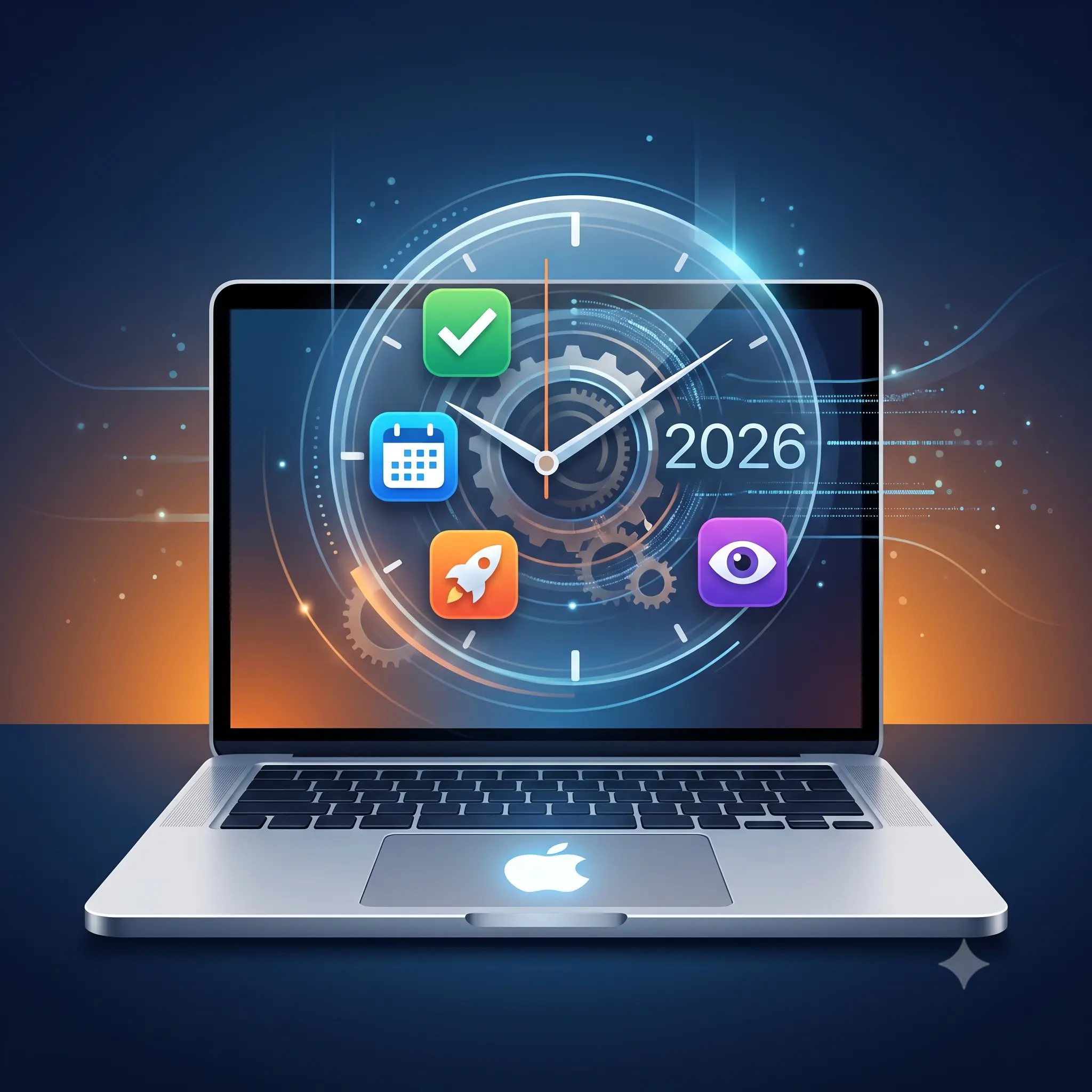
10 Top Productivity Apps for Mac to Reclaim Your Time in 2026
You sit down at your Mac ready to crush your to-do list, but 45 minutes later, you’re lost in a sea of overlapping windows, endless browser tabs, and Slack notifications. We’ve all been there. Your Mac is an incredibly powerful machine, but out of the box, it doesn’t automatically protect your focus or organize your workflow. That’s exactly why finding the top productivity apps for Mac matters so much.
Instead of fighting against digital clutter or relying on pure willpower to stay on task, the right tools act like a personal assistant. They handle the busywork so you can focus on the actual work. Whether you are constantly losing track of time, struggling to find that one specific file, or just feeling overwhelmed by the sheer volume of daily tasks, these apps are designed to solve those exact headaches. I’m going to walk you through exactly how to transform your Mac from a distraction machine into a focused workspace. Let’s look at what these tools actually do and how they can change your daily routine.
What Are Top Productivity Apps for Mac?
Think of top productivity apps for Mac as upgrades to the basic tools Apple gives you. When you buy a Mac, it comes with a calendar, a notes app, and a basic search bar called Spotlight. Those are fine for casual browsing, but if you spend 40 hours a week on your computer, “fine” isn’t enough.
Productivity apps are third-party software designed specifically to speed up your workflow, eliminate repetitive tasks, and keep your attention where it belongs. They fall into a few main categories: task managers, window organizers, time trackers, and advanced search tools.
For example, imagine you need to resize two browser windows to sit side-by-side so you can compare documents. Doing this manually with your mouse takes a few seconds of dragging edges and adjusting corners. It sounds small, but if you do it twenty times a day, it’s annoying. A productivity app like Rectangle lets you snap those windows into perfect halves using a simple keyboard shortcut, taking less than a second.
Another great example is how you search for things. The default Spotlight search finds files, but an app like Raycast lets you search for files, convert currencies, create calendar events, and even join Zoom meetings—all from the exact same search bar without opening other apps. These tools aren’t about learning complex programming; they are about making everyday actions smoother and faster so you have more time for the work that actually matters.
Why You Need Top Productivity Apps for Mac
If you’re wondering why you even need extra apps, it helps to look at the root causes of unproductivity on a computer. Here is why the default setup often holds people back.
The Trap of Context Switching
Every time you stop writing an email to open your calendar, check a date, and then go back to the email, you are “context switching.” Your brain takes time to refocus after every switch. When you rely only on default apps, you end up bouncing between ten different windows just to complete one simple task. Productivity apps solve this by centralizing your actions. For instance, using a launcher app lets you create a reminder or check your schedule without ever leaving the document you are currently typing in.
Invisible Time Drains
We are notoriously bad at guessing where our time goes. You might think you spent two hours designing a presentation, but you actually spent 45 minutes of that time scrolling through a news site or organizing folders. Without a system in place, these hidden time drains eat up your day. Automated time-tracking apps work quietly in the background to show you the hard data on your habits. Once you see that you spent three hours on YouTube last Tuesday, you know exactly what needs to change.
Digital Clutter and Window Chaos
Macs are built for multitasking, but that is a double-edged sword. Having fifteen windows open across three monitors doesn’t make you productive; it makes you overwhelmed. The physical act of hunting for a specific browser tab hidden behind a spreadsheet breaks your concentration. Window management apps remove this friction by letting you organize your screen instantly with your keyboard, keeping your workspace as clean as a freshly wiped desk.
Best Ways to Boost Your Output on Mac
Now that we know the hurdles, let’s look at the best ways to solve them using specific tools.
1. Upgrade Your Search with Raycast or Alfred
Spotlight is okay, but replacing it with an advanced launcher like Raycast or Alfred changes how you use your Mac. Instead of just finding files, these apps let you control your entire computer from your keyboard.
Why it works: It keeps your hands on the keyboard. Reaching for the mouse slows you down. With Raycast, you hit a shortcut, type “mute,” and your microphone is muted. Type “schedule,” and it blocks out time on your calendar.
Mistake to avoid: Don’t try to learn fifty shortcuts on day one. Start by just using it to open apps and do basic math, then slowly add more commands.
2. Snap Windows Instantly with Rectangle or Magnet
Stop dragging window edges with your mouse. Install a window manager like Rectangle (which is free) or Magnet.
Why it works: It brings order to chaos instantly. You can hit a shortcut to make your browser take up the left half of the screen and your notes take up the right. It completely eliminates the time spent resizing windows.
Mistake to avoid: Overcomplicating your layouts. Stick to halves and thirds; you rarely need a window that takes up exactly one-sixth of your screen.
3. Track Time Automatically with Rize or Chronoid
Manual time tracking is a chore most people abandon after a week. Use an automatic tracker like Rize or Chronoid.
Why it works: These apps sit in the menu bar and quietly monitor which apps and websites you use. At the end of the day, you get a highly accurate report of exactly how much time you spent working versus getting distracted. It forces you to be honest with yourself.
Mistake to avoid: Don’t obsess over hitting 100% productivity. Use the data to spot major leaks in your day, not to punish yourself for taking a five-minute break.
4. Build a Reliable Task System with Things 3 or Todoist
Your brain is meant for having ideas, not holding them. You need a dedicated task manager like Things 3 (if you want a beautiful Mac-only experience) or Todoist (if you need something that works across different platforms).
Why it works: A good task manager lets you quickly dump thoughts out of your head and organize them into actionable steps. Things 3, for example, has a fantastic quick-entry shortcut that lets you save a to-do item from anywhere on your Mac without opening the main app.
Mistake to avoid: Using your inbox as a storage unit. Categorize your tasks by project or due date every evening so you don’t wake up to a messy list.
5. Block Distractions Cold with Freedom
Willpower is a limited resource. When you need to focus, use an app like Freedom to block distracting websites and apps completely.
Why it works: It removes the choice. If you block Twitter and Reddit for two hours, you can’t access them even if you try. It breaks the muscle memory of opening a new tab and typing in a distracting URL.
Mistake to avoid: Don’t block the entire internet if you need to do research. Set up specific blocklists for your biggest personal time-wasters.
6. Supercharge Your Copy and Paste
By default, your Mac only remembers the very last thing you copied. A clipboard manager like Maccy or Paste remembers everything you’ve copied for the last month.
Why it works: We constantly copy text, links, and images. If you accidentally copy over something important, it’s normally gone forever. A clipboard manager lets you press a shortcut to pull up a searchable history of everything you’ve ever copied.
Mistake to avoid: Forgetting to clear sensitive data. If you copy a password, make sure your clipboard manager is set to ignore your password manager app so it doesn’t store sensitive info in plain text.
7. Centralize Your Notes with Craft or Obsidian
Apple Notes is great for grocery lists, but for heavy research, writing, or project planning, you want something more capable like Craft or Obsidian.
Why it works: Craft allows you to interlink notes, add rich media, and organize documents beautifully. Obsidian stores everything locally in simple text files, ensuring you never lose access to your data. Having a centralized system prevents you from losing ideas in random folders.
Mistake to avoid: Spending more time organizing your notes than actually writing them. Pick a simple folder structure and stick to it.
Expert Tips
Once you have the basics down, here are a few ways experienced power users squeeze even more out of their Macs:
- Hide the Dock entirely: The Dock takes up valuable screen space and serves as a visual distraction. Set it to auto-hide in your System Settings and rely entirely on Raycast or Alfred to open apps. You will get your screen real estate back and move much faster.
- Use Natural Language for Calendars: Stop clicking through tiny calendar boxes to set a meeting. Use an app like Fantastical or the quick-entry bar in Things 3, where you can literally just type “Meeting with John next Tuesday at 3 PM,” and the app automatically parses the dates and schedules it.
- Clean Up the Menu Bar: As you install more apps, the top right of your screen will get incredibly cluttered. Use a utility like Bartender or Hidden Bar to hide the icons you don’t need to see constantly. A clean visual space equals a clean mind.
- Create App-Specific Workspaces: People often fail by opening every app they might need all at once. Instead, use built-in Mac features like Spaces (multiple desktops) to separate your environments. Put your email on Desktop 1 and your creative apps on Desktop 2. Swipe between them so you only see what you need for the current task.
- Embrace Plain Text: Formatting issues cost us hours every week. When taking quick notes or drafting emails, use plain text editors. It strips away weird fonts and spacing issues, so when you paste the text into an email or a document, it perfectly matches the destination format.
Common Mistakes to Avoid
When trying to optimize your workflow, it is easy to fall into a few common traps.
- Downloading too many apps at once: Installing ten new tools on a Sunday won’t make you productive; it will just overwhelm you. The correct approach: Introduce one new app at a time. Master it for a week before adding another.
- Chasing the “perfect” system: Many people spend hours customizing an app instead of doing actual work. The correct approach: Accept that no system is flawless. Pick a tool that is 80% perfect for you and just start using it.
- Ignoring keyboard shortcuts: Relying heavily on your trackpad defeats the purpose of most productivity software. The correct approach: Force yourself to learn one new keyboard shortcut every few days. Write it on a sticky note and put it on your monitor until it becomes muscle memory.
- Leaving notifications enabled: If your new task manager constantly pings you, it becomes part of the problem. The correct approach: Go into your Mac’s notification settings and turn off badges and banners for everything except absolutely critical communication.
- Keeping apps open you aren’t using: Having heavy software running in the background drains your battery and clutters your App Switcher. The correct approach: Get into the habit of quitting (Command + Q) apps when you finish a task, rather than just closing the window (Command + W).
Pros and Cons of Top Productivity Apps for Mac
Pros
- Massive time savings: Automating repetitive actions like window resizing or finding files gives you hours back every week.
- Reduced mental fatigue: When you don’t have to remember every small detail or constantly search for tabs, your brain stays fresh for problem-solving.
- Better focus: Tools designed to block distractions make it significantly easier to stay in a state of deep work.
- Customization: You can tailor your Mac exactly to how your brain works, rather than forcing yourself to fit Apple’s default molds.
Cons
- Steep learning curves: Advanced tools require patience and time to learn properly before they become efficient.
- Subscription fatigue: Many of the best apps have moved to monthly or yearly pricing models, which can quickly add up.
- The “productivity trap”: It is very easy to spend more time organizing your tasks and tweaking your apps than actually completing your work.
Frequently Asked Questions
Are the default Mac apps good enough for productivity?
For light users, yes. Apple Notes, Reminders, and Calendar are solid, well-designed apps. However, if you rely on your Mac for heavy professional work, third-party apps offer advanced features like natural language processing, complex tagging, and keyboard-first navigation that the default apps simply don’t have.
What is the best free productivity app for Mac?
Raycast and Rectangle are easily the best free productivity apps you can install right now.Rectangle completely solves window management for free, and Raycast offers an incredibly powerful Spotlight replacement that costs nothing for its core features.
Do productivity apps drain my Mac’s battery?
Most modern productivity apps are highly optimized, especially if they are built natively for Apple Silicon (M1/M2/M3 chips). Lightweight tools like window managers use virtually zero battery. However, apps running constantly in the background, like automatic time trackers, may have a very minor impact.
How do I stop getting distracted on my Mac?
The most effective method is a two-step approach: First, turn on macOS Focus mode to silence notifications. Second, use a dedicated website blocker like Freedom to physically prevent yourself from accessing distracting sites like social media or news outlets during work hours.
Is a one-time purchase better than a subscription?
Usually, yes, as it saves money in the long run. Apps like Things 3 charge a higher upfront fee but never charge you again. However, subscription apps often provide continuous updates and cloud syncing that one-time purchase apps might struggle to maintain.
Can I use Windows productivity apps on a Mac?
Some apps, like Todoist, Notion, and Obsidian, are cross-platform and work perfectly on both. But tools that integrate deeply with the operating system, like Alfred or CleanShot X, are exclusively built for Mac.
What is a clipboard manager and why do I need one?
A clipboard manager securely saves a history of everything you copy (text, links, images). Instead of constantly bouncing between windows to copy and paste multiple items, you can copy everything at once and paste them one by one from your clipboard history.
How long does it take to learn these tools?
Simple apps like Rectangle or a clipboard manager take about five minutes to learn. Comprehensive systems like task managers or advanced search launchers might take a week or two of daily use before the shortcuts become pure muscle memory.
Will these apps slow down my older Mac?
Native Mac apps generally run very smoothly, even on older Intel Macs. However, heavy web-wrapper apps can consume a lot of RAM. If you have an older Mac, stick to lightweight, native apps like Bear or Things 3.
How do I organize my files better?
Stop relying on messy desktop folders and use search. By naming your files clearly and using a tool like Raycast, you can instantly pull up any document by typing a few letters, bypassing the need for complex, nested folder structures entirely.
Conclusion
Getting the most out of your computer isn’t about working harder; it’s about removing friction. The top productivity apps for Mac serve a very specific purpose: they take the tedious, repetitive actions off your plate so you can focus your energy on meaningful work.
Whether you start by snapping windows with Rectangle, searching at the speed of light with Raycast, or automatically tracking your habits with Chronoid, these tools fundamentally change how you interact with your machine. Remember, the goal is not to download a dozen apps today and try to reinvent your entire workflow overnight. That usually just leads to more stress.
Instead, pick just one area where you struggle the most whether that’s window clutter, losing track of time, or getting distracted and try one app designed to solve it. Reclaim your focus, build the muscle memory, and watch how much smoother your workday becomes. Your future, less-stressed self will thank you.