Category: Technology

  • How to Protect Online Privacy: A Complete Beginner’s Guide to Digital Safety

    How to Protect Online Privacy: A Complete Beginner’s Guide to Digital Safety

    Imagine walking out of your house, leaving the front door wide open, your personal diary resting on the porch, and your bank statements taped to the windows. That sounds crazy in the real world, but millions of people do the exact same thing every day on the internet without realizing it.

    Whether it’s creepy targeted ads following you from site to site, endless spam emails flooding your inbox, or the terrifying thought of a scammer stealing your identity, our digital lives are constantly exposed. You might think nobody cares about your data, but to advertisers, data brokers, and cybercriminals, your personal information is a goldmine. Figuring out exactly how to protect online privacy might feel overwhelming at first, especially with technology changing so fast.

    Don’t worry, though. You don’t need a computer science degree to lock down your digital life. Let’s break down exactly what’s at stake and how you can take back control of your personal information today.


    What Does It Mean to Protect Your Online Privacy?

    At its core, protecting your online privacy is just about deciding who gets to see your personal information and what they are allowed to do with it. Every time you browse the web, use a smartphone app, or post on social media, you leave behind a digital footprint. Privacy protection is the act of shrinking that footprint.

    Think of it like closing the curtains in your living room. You aren’t doing anything illegal or hiding a dark secret; you just don’t want strangers looking into your window while you’re eating dinner or watching TV. Online privacy is the digital version of those curtains.

    It blocks internet service providers, tech companies, and cybercriminals from tracking every website you visit, every item you buy, and every message you send. When you take steps to secure your digital life, you are simply building a virtual fence around your personal space, keeping unwanted snoops out and ensuring your private life stays private.


    What Causes Your Online Privacy to Be Compromised?

    Before we can fix the problem, we need to understand how our data gets out there in the first place. Here are the most common ways your privacy gets compromised.

    Reckless Social Media Sharing

    We love sharing our lives online, but oversharing is a massive privacy killer. For example, posting a photo of your boarding pass before a vacation might seem harmless. However, that pass contains a barcode that holds your frequent flyer number, full name, and booking reference—giving a clever hacker enough info to access your airline account or even cancel your flight.

    “Free” Apps and Services

    There is an old saying in the tech world: If you aren’t paying for the product, you are the product. Many free games, flashlight apps, or budget trackers make their money by collecting your data and selling it to advertisers. If a simple calculator app asks for permission to access your location and microphone, it’s collecting data it absolutely does not need to function.

    Unsecured Public Wi-Fi Networks

    Logging into your bank account while sipping a latte at the local coffee shop is convenient, but it’s also dangerous. Public Wi-Fi networks are often unencrypted. This means a hacker sitting a few tables away with the right software can intercept the data traveling between your device and the router, easily scooping up your passwords and sensitive information.

    Corporate Data Breaches

    Sometimes, your privacy is compromised through no fault of your own. You might have a perfectly secure password, but if the massive company storing your data gets hacked, your information gets leaked onto the dark web. This is a leading cause of exposed email addresses, passwords, and credit card numbers.


    Best Ways to Secure Your Digital Identity

    Taking control of your digital life is easier than you think. Here are the most effective, actionable steps you can take to lock down your personal data.

    1. Start Using a Password Manager

    The days of using “Password123!” for every website are over. Reusing passwords is the single biggest mistake people make online. If one site gets hacked, criminals will try that same password on your email and bank accounts.

    Why it works: A password manager (like Bitwarden or 1Password) acts as a digital vault. It generates complex, uncrackable passwords (like x7&Kj9!mP2q) for every single site you use and remembers them for you. You only have to remember one “Master Password” to unlock the vault.

    2. Turn On Two-Factor Authentication (2FA)

    If a hacker manages to steal your password, 2FA stops them dead in their tracks.

    Why it works: Two-factor authentication requires a second piece of proof that you are who you say you are—usually a temporary code sent to your phone. Even with your password, a hacker can’t log in unless they also physically possess your smartphone.
    Pro-tip: Whenever possible, use an authenticator app (like Google Authenticator or Authy) instead of text messages, as SMS messages can be intercepted.

    3. Review App Permissions on Your Phone

    Your phone knows everything about you. It’s time to limit what your apps know.

    Why it works: By going into your phone’s settings, you can see exactly which apps have access to your camera, microphone, location, and contacts. If a recipe app has access to your location at all times, revoke that permission. Only grant permissions to apps while they are actively in use.

    4. Use a Virtual Private Network (VPN) on Public Wi-Fi

    If you travel or work from coffee shops, a VPN is non-negotiable.

    Why it works: A VPN scrambles all the data leaving your phone or laptop. If a hacker is snooping on the airport Wi-Fi, all they will see is a stream of unreadable gibberish instead of your emails and passwords.

    5. Switch to a Privacy-Focused Browser and Search Engine

    Mainstream browsers and search engines are built to track your behavior and serve you ads.

    Why it works: Browsers like Brave or Mozilla Firefox have built-in trackers blockers. Pairing them with a search engine like DuckDuckGo—which doesn’t log your search queries—drastically reduces the amount of targeted ads following you around the web.

    6. Freeze Your Credit

    This is the ultimate defense against identity theft.

    Why it works: By contacting the major credit bureaus (Equifax, Experian, and TransUnion) and freezing your credit, you block anyone from opening new credit cards or loans in your name. It’s free to do, and you can temporarily unfreeze it whenever you need to apply for a loan yourself.

    7. Opt Out of Data Brokers

    Have you ever Googled your name and found sites listing your home address, phone number, and relatives? Those are data brokers.

    Why it works: Companies like Whitepages and Spokeo scrape public records and sell your data. You can manually visit these sites and request they remove your info, or pay for a service like DeleteMe or Incogni to do the heavy lifting for you on an ongoing basis.


    Expert Tips for Next-Level Privacy

    Ready to graduate from beginner to pro? Here are a few lesser-known strategies that cybersecurity experts use every day:

    • Lie on your security questions: Your mother’s maiden name and your high school mascot are likely public record. Treat security questions like extra passwords. If it asks for the street you grew up on, answer with something random like “BlueberryPancakes.”
    • Use alias email addresses: Don’t give your real email to every newsletter or store. Use tools like Apple’s “Hide My Email” or SimpleLogin. These generate unique, forward-only email addresses. If one starts getting spam, you can just delete that specific alias.
    • Turn off Wi-Fi and Bluetooth when leaving the house: Physical retail stores actually use Bluetooth beacons hidden in the aisles to track your phone’s movement through the store. Turning these off when you don’t need them stops physical location tracking.
    • Compartmentalize your browsers: Use one browser (like Firefox) strictly for your banking and important accounts, and a completely different browser (like Chrome) for casual browsing, social media, and YouTube. This stops social media trackers from associating with your financial sessions.
    • Don’t unsubscribe from obvious spam: If you get a blatant spam or phishing email, do not click the “unsubscribe” link at the bottom. Clicking that link just proves to the spammer that your email address is active, guaranteeing you’ll receive even more junk. Just mark it as spam and delete it.

    Common Mistakes to Avoid

    • Relying entirely on Incognito Mode:
    • Why it’s harmful: Incognito mode only stops your browser from saving your local history. Your internet service provider (ISP), your boss (if on work Wi-Fi), and the websites you visit can still see everything you do.
    • The correct approach: Use a VPN to actually hide your web traffic from your ISP and local network.
    • Clicking “Accept All” on cookie banners:
    • Why it’s harmful: You are legally giving websites permission to track your behavior and share it with third-party advertisers.
    • The correct approach: Take the extra three seconds to click “Manage Preferences” and reject non-essential cookies.
    • Taking viral social media quizzes:
    • Why it’s harmful: “What kind of potato are you?” quizzes are often designed to harvest your profile data, friend lists, and photos.
    • The correct approach: Ignore them completely. No quiz is worth giving a stranger access to your digital life.
    • Ignoring software updates:
    • Why it’s harmful: Updates aren’t just for new emojis. They frequently contain vital security patches. Ignoring them leaves known “open doors” for hackers to walk through.
    • The correct approach: Turn on automatic updates for your phone, computer, and all apps.
    • Saving passwords in your browser:
    • Why it’s harmful: If a hacker gains access to your computer, browser-saved passwords are often stored in plain text or are incredibly easy to extract.
    • The correct approach: Disable browser password saving and use a dedicated, encrypted password manager instead.

    The Pros and Cons of Prioritizing Online Privacy

    Pros:

    • Peace of mind: Knowing your banking and personal data are locked away from hackers.
    • Less spam and fewer ads: Blocking trackers means a cleaner, faster browsing experience without creepy targeted ads.
    • Protection from identity theft: Minimizing your footprint makes it incredibly difficult for scammers to open accounts in your name.
    • Professional safety: Keeps your private life separate from your professional life, preventing embarrassing data leaks.

    Cons:

    • Slight inconvenience: Typing in a 2FA code or logging into a password vault takes an extra five seconds.
    • Financial cost: While many tools are free, premium VPNs and data removal services require a subscription.
    • Broken website functionality: Aggressive ad and tracker blockers can sometimes cause websites to load incorrectly, requiring you to temporarily disable them.

    Frequently Asked Questions

    Does Incognito mode protect my privacy?

    No. Incognito or private browsing mode only prevents your computer from saving your search history and cookies locally. Your internet provider, your employer (if on a work network), and the websites you visit can still track your activity.

    Is a free VPN safe to use?

    Usually, no. Running VPN servers is expensive. If a VPN service is free, they are likely paying for their servers by logging your browsing activity and selling that data to advertisers—which completely defeats the purpose of using a VPN in the first place. Stick to reputable, paid VPNs.

    Can my internet service provider see my search history?

    Yes. Without a VPN, your ISP can see the domain names of every website you visit. In some countries, ISPs are legally allowed to sell this browsing history to third-party marketing companies.

    How do I know if my data has been leaked in a breach?

    You can use a free tool called HaveIBeenPwned.com. By entering your email address or phone number, the site checks a massive database of known corporate data breaches and will tell you exactly which services leaked your data so you can change those passwords immediately.

    Do I really need antivirus software if I have a Mac?

    Yes. While Macs historically had fewer viruses than Windows PCs, they are not immune to malware. More importantly, built-in security doesn’t protect you from phishing scams (fake websites designed to steal your passwords), which target the user, not the operating system.

    Why am I getting ads for things I only talked about out loud?

    While it feels like your phone is listening, it usually isn’t. Tech companies are just incredibly good at connecting data points. If you stood next to a friend who was searching for camping gear on their phone, the algorithms note that your devices were in the same location and assume you might want camping gear, too.

    Is it safe to save passwords in my browser?

    It is better than reusing passwords, but it is not the safest option. Dedicated password managers are built with much stronger encryption and security protocols than web browsers, and they sync more safely across different devices.

    What is the best messaging app for privacy?

    Signal is widely considered the gold standard for private messaging. It is open-source, non-profit, and uses end-to-end encryption by default, meaning even the creators of Signal cannot read your text messages or hear your calls.

    Can deleting cookies improve my privacy?

    Yes. Deleting your cookies regularly logs you out of websites but also clears out tracking tokens that advertisers use to follow your movements across the internet. You can set your browser to automatically clear cookies every time you close it.

    Are smart home devices spying on me?

    Smart speakers and cameras are designed to listen for “wake words.” While they aren’t constantly recording everything, accidents happen, and voice recordings are often saved to improve AI. Always review your privacy settings in the companion app to auto-delete voice recordings and restrict data sharing.


    Conclusion

    Securing your digital life doesn’t have to be an exhausting, overwhelming chore. Protecting your online privacy is a daily habit, much like locking the front door of your house when you leave for work. By setting up a password manager, turning on two-factor authentication, and being a little more mindful of what you share and click on, you instantly make yourself a harder target for cybercriminals and data brokers.

    The internet was built to connect us, but that doesn’t mean you have to surrender your personal life to enjoy it. Don’t wait for a data breach or a hacked account to force your hand. Start small today: pick just one account—like your primary email—and change it to a strong, unique password. Take that first step, and reclaim control of your digital identity.

  • Transform Your Space: A Beginner’s Guide to Building a Smart Home

    Transform Your Space: A Beginner’s Guide to Building a Smart Home

    Imagine waking up to the smell of fresh coffee, lights that gradually brighten to mimic the sunrise, and a living room already warmed to the perfect temperature all before your feet even touch the floor. Sounds like a scene from a sci-fi movie, right? But it is actually completely doable today. We live busy, chaotic lives, juggling work, family, and chores. Between forgetting to turn off the hallway lights, rushing out the door wondering if you actually locked it, or opening a shockingly high electricity bill because the AC ran all day, running a house can be stressful.

    That is exactly where investing in must have smart home gadgets comes in to save the day. By bringing a little bit of connectivity into your living space, you can eliminate those tiny daily frustrations. You don’t need a degree in computer science or thousands of dollars to get started, either. Ready to find out how to turn your regular house into a helpful digital assistant? Let’s break down exactly what this means, why it matters, and where you should start.

    What Are Must Have Smart Home Gadgets?

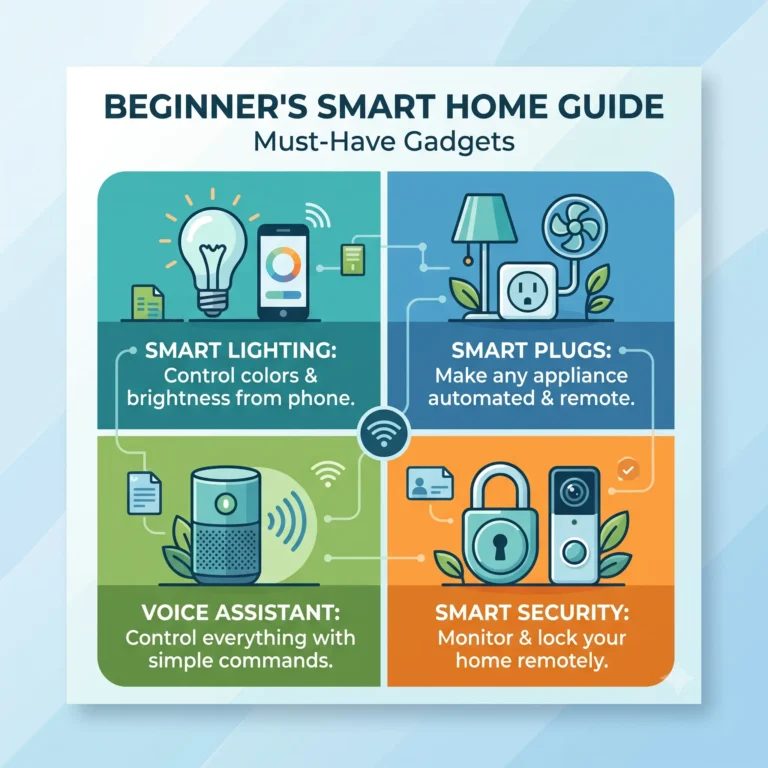
    At its core, a smart home gadget is simply an everyday household item—like a lightbulb, a plug, or a thermostat—that connects to your home’s Wi-Fi network. Because these devices are connected to the internet, you can control them remotely using an app on your smartphone or by speaking out loud to a voice assistant like Amazon Alexa, Google Assistant, or Apple Siri.

    Think about your traditional coffee maker. Normally, you have to walk into the kitchen, press a button, and wait. But if you plug that same coffee maker into a smart plug, it instantly becomes a “smart” device. You can set a schedule on your phone so it turns on at 7:00 AM every single morning. If you’re lying in bed on a Saturday and want to sleep in, you just tap your phone screen to delay the brew.

    These gadgets are designed to be beginner-friendly. You do not need to rewire your house or hire an electrician for the vast majority of them. You simply plug them in, connect them to your Wi-Fi using an app, and enjoy the convenience of controlling your home from anywhere in the world.

    What Causes the Need for Smart Home Gadgets?

    While “causes” usually applies to problems, when we talk about smart home tech, we are really talking about the everyday pain points that cause people to seek out these digital solutions. Here is why so many people are upgrading their spaces.

    Skyrocketing Energy Bills

    We have all accidentally left the lights on before leaving for a weekend trip, or kept the heat blasting while nobody was home. Traditional appliances lack the ability to adapt to our schedules. This constant energy waste translates directly into higher utility bills. Smart home technology addresses this by allowing you to put your entire house on a strict, automated energy diet, shutting things down the second you leave.

    Home Security Anxiety

    That nagging feeling of “Did I lock the front door?” or “Did I leave the garage open?” is a universal anxiety. Traditional locks and peepholes require you to be physically present to secure your home. The need for peace of mind while at the office or on vacation is a massive driver for smart cameras and locks, letting you check your home’s status from your phone.

    Lack of Time and Convenience

    Modern life is incredibly fast-paced. Coming home with arms full of groceries, fumbling for keys, and walking into a dark house is frustrating. People are tired of doing repetitive, manual tasks. The desire to streamline daily routines—like having the lights turn on automatically when you walk into the kitchen—pushes people toward automation.

    Accessibility and Mobility Challenges

    For the elderly or individuals with mobility issues, getting up to adjust a thermostat, reach a high light switch, or check who is at the door can be physically difficult or even dangerous. Voice-controlled gadgets solve this entirely, granting a new level of independence by letting users control their environment using just their voice.

    Best Ways to Build Your Smart Home Setup

    Diving into smart technology can feel overwhelming if you try to do everything at once. To avoid frustration and wasted money, you need a strategic approach. Here are the most actionable tips for setting up your home, starting with the absolute basics.

    1. Start Small with Smart Plugs

    Smart plugs are the ultimate gateway gadget. You plug them into a standard wall outlet, and then plug your “dumb” device (like a fan, a lamp, or a slow cooker) into them. They allow you to turn the power on and off via your phone.

    • Why it works: It is the cheapest and easiest way to test out smart home automation without replacing your existing appliances.
    • Practical example: Plug your living room floor lamp into a smart plug. Set a schedule so it turns on at sunset and off at midnight.
    • Mistake to avoid: Do not plug high-wattage appliances (like space heaters or window AC units) into cheap, basic smart plugs. Always check the wattage rating to avoid fire hazards.

    2. Illuminate Wisely with Smart Bulbs

    Instead of paying an electrician to install expensive dimmer switches, just swap out your standard lightbulbs for smart LED bulbs.

    • Why it works: They connect directly to your Wi-Fi or a small hub, letting you dim the lights, change colors, and set schedules right from your phone.
    • Practical example: Set your bedroom smart bulbs to turn on at 10% brightness with a warm orange glow at 6:30 AM, slowly getting brighter over 30 minutes to wake you up naturally.
    • Mistake to avoid: Turning off the physical wall switch. If you flip the switch off, the smart bulb loses Wi-Fi connection and cannot be turned on with your phone. Leave the switch on and control it digitally.

    3. Choose a Central Command (Voice Assistants)

    To get the most out of your gadgets, you need a way to control them hands-free. A smart speaker (like an Amazon Echo or Google Nest Mini) acts as the brain of your house.

    • Why it works: Voice control is infinitely faster than pulling out your phone, unlocking it, opening an app, and tapping a button.
    • Practical example: When your hands are covered in raw chicken while cooking, you can simply say, “Turn on the sink light” or “Set a timer for 15 minutes.”
    • Mistake to avoid: Buying devices that don’t talk to each other. Pick one ecosystem (Google, Amazon, or Apple) and make sure every gadget you buy says “Works with [Your Choice]” on the box.

    4. Automate Climate Control with a Smart Thermostat

    A smart thermostat replaces your traditional wall thermostat and learns your heating and cooling preferences over time.

    • Why it works: It uses sensors and your phone’s location (geofencing) to know when you leave the house, automatically adjusting the temperature to save money, and bringing it back to comfortable levels before you walk through the door.
    • Practical example: You go on a winter vacation and realize halfway to the airport you left the heat at 72 degrees. You simply open the app and drop it to 60 degrees.
    • Mistake to avoid: Installing it without checking your wiring. Most smart thermostats require a “C-wire” (common wire) for continuous power. Check your current setup before buying.

    5. Keep Watch with a Video Doorbell

    Video doorbells notify you on your phone whenever someone rings the bell or approaches your porch, providing a live video feed and two-way audio.

    • Why it works: It deters package thieves and lets you screen visitors safely without having to go to the door.
    • Practical example: A delivery driver drops off a package while you are at work. You get an alert, see them on camera, and use the microphone to say, “Please leave it behind the planter.”
    • Mistake to avoid: Pointing the camera too high. Angle it slightly downward so you can actually see the packages left on your welcome mat.

    6. Ditch the House Keys for a Smart Lock

    Smart locks allow you to unlock your front door using a keypad code, a fingerprint, or your smartphone.

    • Why it works: You never have to worry about losing your keys or hiding a spare rock under a fake plant. You can also give unique temporary codes to dog walkers or house cleaners.
    • Practical example: You are carrying heavy boxes into the house. Instead of putting them down to find your keys, the door automatically unlocks as your phone approaches via Bluetooth.
    • Mistake to avoid: Buying a completely keyless lock without a backup power terminal. Always ensure there is a way to get in (either a physical key slot or a 9V battery jumpstart) if the lock’s internal batteries die.

    7. Manage Entertainment Centers with Smart Power Strips

    A smart power strip looks like a regular surge protector, but you can control each outlet individually via an app.

    • Why it works: Entertainment centers usually have a TV, a gaming console, a soundbar, and a streaming box. A smart strip stops these devices from drawing “vampire power” when turned off.
    • Practical example: Set up a routine so that when you say “Goodnight,” the entire power strip shuts down, cutting power to all your standby electronics at once.
    • Mistake to avoid: Overcrowding the strip. Ensure the Wi-Fi antenna inside the strip isn’t completely blocked by heavy metal TV stands, or it will lose connection.

    Expert Tips for a Flawless Smart Home

    • Check Your Router’s Capacity: A standard ISP-provided router can usually handle about 15-20 devices before it starts dropping connections. If you plan on buying dozens of smart bulbs and plugs, upgrade to a Mesh Wi-Fi system to ensure a stable connection everywhere.
    • Group Gadgets into “Routines”: Don’t control devices one by one. Group them! Create a routine called “Movie Time” that dims the living room lights, turns off the hallway lamp, and turns on the TV all at the exact same time with one voice command.
    • Name Your Devices Logically: Avoid naming a smart plug “Plug 1”. You will forget what it does. Name it exactly what it controls, like “Living Room Humidifier,” so voice commands are natural and easy to remember.
    • Keep Your Wi-Fi Passwords Simple but Secure: Smart home gadgets can be finicky to set up if your Wi-Fi password contains heavy punctuation or spaces. Use a long passphrase (like four random words mashed together) rather than complex symbols.
    • Check for Physical Overrides: Always ensure the gadgets you buy can still be used manually if the internet goes down. A smart lock should have a keyway, and smart blinds should have a manual pull chain just in case.

    Common Mistakes to Avoid

    • Buying the cheapest off-brand gadgets: Extremely cheap devices from unknown brands often lack basic security protocols and rarely update their software, making them easy targets for hackers. Stick to reputable brands.
    • Ignoring software updates: Just like your phone, smart gadgets require firmware updates to patch security flaws. Make sure you enable “auto-update” in your smart device apps.
    • Mixing incompatible ecosystems: Buying a Google-compatible plug, an Apple-compatible lock, and an Alexa-compatible lightbulb will force you to use three different apps. Stick to gadgets that all support one central platform.
    • Forgetting about bandwidth: Smart cameras, especially video doorbells, use a lot of upload bandwidth. If your internet plan is slow, your live video feeds will buffer constantly.
    • Overcomplicating things on day one: Trying to set up motion sensors, smart blinds, and complex logic routines on your first day will just frustrate you. Start with a single lightbulb or plug and learn how the app works first.

    Pros and Cons of Must Have Smart Home Gadgets

    Pros

    • Unmatched Convenience: Control your entire home environment without getting off the couch.
    • Energy Savings: Automated thermostats and lights reduce wasted electricity.
    • Enhanced Security: Real-time alerts and video feeds keep you connected to your home 24/7.
    • Accessibility: Voice commands make daily routines much easier for the elderly and disabled.
    • Customization: You can tailor your home’s lighting and climate to perfectly match your daily schedule.

    Cons

    • Initial Cost: While basic plugs are cheap, decking out a whole house with smart locks, thermostats, and cameras gets expensive.
    • Internet Dependency: If your Wi-Fi goes down, many of your automated routines and remote controls will stop working.
    • Learning Curve: Setting up devices and troubleshooting connection drops can be frustrating for non-tech-savvy users.
    • Privacy Concerns: Having microphones and cameras inside your home means you must trust the companies manufacturing them.

    Frequently Asked Questions

    Do I need fast internet for smart home gadgets?

    For basic devices like smart plugs and lightbulbs, you do not need extremely fast internet; they use very little data. However, if you are installing video doorbells or security cameras, you will need a solid internet connection with good upload speeds (at least 5 Mbps per camera) to stream video smoothly.

    Can I mix Alexa and Google Assistant in one house?

    Yes, you can, but it is not recommended. Mixing voice assistants means you have to remember which speaker controls which room, and you cannot easily group devices together. Picking one primary ecosystem makes everything run much smoother.

    Are smart homes safe from hackers?

    No system is 100% hack-proof, but you can heavily minimize the risk. To stay safe, change your router’s default password, enable two-factor authentication (2FA) on all your smart home apps, and only buy devices from reputable brands that provide regular security updates.

    What happens to my smart home if the Wi-Fi goes down?

    It depends on the device. Most smart speakers and remote app controls will stop working. However, physical functions (like flipping a light switch, using a physical key in a smart lock, or a thermostat reading the room temperature) will continue to operate normally.

    Do smart gadgets increase my electricity bill?

    Smart gadgets do draw a tiny amount of “vampire power” to maintain their Wi-Fi connection. However, the energy they consume is minuscule compared to the massive amount of energy they save by automatically turning off large appliances and adjusting your heating/cooling.

    Are smart plugs safe to leave plugged in?

    Yes, smart plugs from reputable brands (like TP-Link, Wemo, or Wyze) are UL-certified and completely safe to leave plugged in 24/7. Just ensure you never plug high-heat appliances like space heaters or large air conditioners into a basic smart plug, as they can overload the circuit.

    Do I need a central “hub” to run everything?

    Not anymore! In the past, you needed a dedicated smart hub plugged into your router. Today, the majority of beginner must have smart home gadgets connect directly to your Wi-Fi network and are controlled via their native apps or a standard smart speaker.

    Can renters use smart home gadgets?

    Absolutely. Most smart gadgets, like smart plugs, lightbulbs, and freestanding indoor cameras, require zero installation. Even video doorbells now come in battery-operated versions that can be mounted with heavy-duty adhesive, making them completely renter-friendly.

    How much does it cost to start a basic smart home?

    You can start very cheap! A single smart plug or smart bulb usually costs between $10 and $15. A basic smart speaker like an Amazon Echo Dot or Google Nest Mini goes for around $40. You can get your feet wet for under $60.

    Do I need to be tech-savvy to use these?

    Not at all. Manufacturers have designed these devices specifically for the average consumer. Setup usually involves plugging the device in, downloading a free app, and following a few on-screen prompts to connect it to your Wi-Fi.

    Conclusion

    Upgrading your living space doesn’t have to be a stressful or expensive weekend project. By integrating a few must have smart home gadgets into your daily routine, you can save energy, secure your property, and buy back precious time. You no longer have to worry about whether you locked the door or left the iron on; the answers are resting right in your pocket.

    The trick is simply not to overthink it. Do not try to automate your entire house on day one. Start small by purchasing a single smart plug or a smart speaker. Connect a lamp or a coffee maker, play around with the scheduling features, and experience the convenience firsthand. Once you see how easily a little bit of technology can streamline your morning, you will know exactly which smart upgrade you want to tackle next!

  • 10 Top Productivity Apps for Mac to Reclaim Your Time in 2026

    10 Top Productivity Apps for Mac to Reclaim Your Time in 2026

    You sit down at your Mac ready to crush your to-do list, but 45 minutes later, you’re lost in a sea of overlapping windows, endless browser tabs, and Slack notifications. We’ve all been there. Your Mac is an incredibly powerful machine, but out of the box, it doesn’t automatically protect your focus or organize your workflow. That’s exactly why finding the top productivity apps for Mac matters so much.

    Instead of fighting against digital clutter or relying on pure willpower to stay on task, the right tools act like a personal assistant. They handle the busywork so you can focus on the actual work. Whether you are constantly losing track of time, struggling to find that one specific file, or just feeling overwhelmed by the sheer volume of daily tasks, these apps are designed to solve those exact headaches. I’m going to walk you through exactly how to transform your Mac from a distraction machine into a focused workspace. Let’s look at what these tools actually do and how they can change your daily routine.

    What Are Top Productivity Apps for Mac?

    Think of top productivity apps for Mac as upgrades to the basic tools Apple gives you. When you buy a Mac, it comes with a calendar, a notes app, and a basic search bar called Spotlight. Those are fine for casual browsing, but if you spend 40 hours a week on your computer, “fine” isn’t enough.

    Productivity apps are third-party software designed specifically to speed up your workflow, eliminate repetitive tasks, and keep your attention where it belongs. They fall into a few main categories: task managers, window organizers, time trackers, and advanced search tools.

    For example, imagine you need to resize two browser windows to sit side-by-side so you can compare documents. Doing this manually with your mouse takes a few seconds of dragging edges and adjusting corners. It sounds small, but if you do it twenty times a day, it’s annoying. A productivity app like Rectangle lets you snap those windows into perfect halves using a simple keyboard shortcut, taking less than a second.

    Another great example is how you search for things. The default Spotlight search finds files, but an app like Raycast lets you search for files, convert currencies, create calendar events, and even join Zoom meetings—all from the exact same search bar without opening other apps. These tools aren’t about learning complex programming; they are about making everyday actions smoother and faster so you have more time for the work that actually matters.

    Why You Need Top Productivity Apps for Mac

    If you’re wondering why you even need extra apps, it helps to look at the root causes of unproductivity on a computer. Here is why the default setup often holds people back.

    The Trap of Context Switching

    Every time you stop writing an email to open your calendar, check a date, and then go back to the email, you are “context switching.” Your brain takes time to refocus after every switch. When you rely only on default apps, you end up bouncing between ten different windows just to complete one simple task. Productivity apps solve this by centralizing your actions. For instance, using a launcher app lets you create a reminder or check your schedule without ever leaving the document you are currently typing in.

    Invisible Time Drains

    We are notoriously bad at guessing where our time goes. You might think you spent two hours designing a presentation, but you actually spent 45 minutes of that time scrolling through a news site or organizing folders. Without a system in place, these hidden time drains eat up your day. Automated time-tracking apps work quietly in the background to show you the hard data on your habits. Once you see that you spent three hours on YouTube last Tuesday, you know exactly what needs to change.

    Digital Clutter and Window Chaos

    Macs are built for multitasking, but that is a double-edged sword. Having fifteen windows open across three monitors doesn’t make you productive; it makes you overwhelmed. The physical act of hunting for a specific browser tab hidden behind a spreadsheet breaks your concentration. Window management apps remove this friction by letting you organize your screen instantly with your keyboard, keeping your workspace as clean as a freshly wiped desk.

    Best Ways to Boost Your Output on Mac

    Now that we know the hurdles, let’s look at the best ways to solve them using specific tools.

    1. Upgrade Your Search with Raycast or Alfred

    Spotlight is okay, but replacing it with an advanced launcher like Raycast or Alfred changes how you use your Mac. Instead of just finding files, these apps let you control your entire computer from your keyboard.

    Why it works: It keeps your hands on the keyboard. Reaching for the mouse slows you down. With Raycast, you hit a shortcut, type “mute,” and your microphone is muted. Type “schedule,” and it blocks out time on your calendar.

    Mistake to avoid: Don’t try to learn fifty shortcuts on day one. Start by just using it to open apps and do basic math, then slowly add more commands.

    2. Snap Windows Instantly with Rectangle or Magnet

    Stop dragging window edges with your mouse. Install a window manager like Rectangle (which is free) or Magnet.

    Why it works: It brings order to chaos instantly. You can hit a shortcut to make your browser take up the left half of the screen and your notes take up the right. It completely eliminates the time spent resizing windows.

    Mistake to avoid: Overcomplicating your layouts. Stick to halves and thirds; you rarely need a window that takes up exactly one-sixth of your screen.

    3. Track Time Automatically with Rize or Chronoid

    Manual time tracking is a chore most people abandon after a week. Use an automatic tracker like Rize or Chronoid.

    Why it works: These apps sit in the menu bar and quietly monitor which apps and websites you use. At the end of the day, you get a highly accurate report of exactly how much time you spent working versus getting distracted. It forces you to be honest with yourself.

    Mistake to avoid: Don’t obsess over hitting 100% productivity. Use the data to spot major leaks in your day, not to punish yourself for taking a five-minute break.

    4. Build a Reliable Task System with Things 3 or Todoist

    Your brain is meant for having ideas, not holding them. You need a dedicated task manager like Things 3 (if you want a beautiful Mac-only experience) or Todoist (if you need something that works across different platforms).

    Why it works: A good task manager lets you quickly dump thoughts out of your head and organize them into actionable steps. Things 3, for example, has a fantastic quick-entry shortcut that lets you save a to-do item from anywhere on your Mac without opening the main app.

    Mistake to avoid: Using your inbox as a storage unit. Categorize your tasks by project or due date every evening so you don’t wake up to a messy list.

    5. Block Distractions Cold with Freedom

    Willpower is a limited resource. When you need to focus, use an app like Freedom to block distracting websites and apps completely.

    Why it works: It removes the choice. If you block Twitter and Reddit for two hours, you can’t access them even if you try. It breaks the muscle memory of opening a new tab and typing in a distracting URL.

    Mistake to avoid: Don’t block the entire internet if you need to do research. Set up specific blocklists for your biggest personal time-wasters.

    6. Supercharge Your Copy and Paste

    By default, your Mac only remembers the very last thing you copied. A clipboard manager like Maccy or Paste remembers everything you’ve copied for the last month.

    Why it works: We constantly copy text, links, and images. If you accidentally copy over something important, it’s normally gone forever. A clipboard manager lets you press a shortcut to pull up a searchable history of everything you’ve ever copied.

    Mistake to avoid: Forgetting to clear sensitive data. If you copy a password, make sure your clipboard manager is set to ignore your password manager app so it doesn’t store sensitive info in plain text.

    7. Centralize Your Notes with Craft or Obsidian

    Apple Notes is great for grocery lists, but for heavy research, writing, or project planning, you want something more capable like Craft or Obsidian.

    Why it works: Craft allows you to interlink notes, add rich media, and organize documents beautifully. Obsidian stores everything locally in simple text files, ensuring you never lose access to your data. Having a centralized system prevents you from losing ideas in random folders.

    Mistake to avoid: Spending more time organizing your notes than actually writing them. Pick a simple folder structure and stick to it.

    Expert Tips

    Once you have the basics down, here are a few ways experienced power users squeeze even more out of their Macs:

    1. Hide the Dock entirely: The Dock takes up valuable screen space and serves as a visual distraction. Set it to auto-hide in your System Settings and rely entirely on Raycast or Alfred to open apps. You will get your screen real estate back and move much faster.
    2. Use Natural Language for Calendars: Stop clicking through tiny calendar boxes to set a meeting. Use an app like Fantastical or the quick-entry bar in Things 3, where you can literally just type “Meeting with John next Tuesday at 3 PM,” and the app automatically parses the dates and schedules it.
    3. Clean Up the Menu Bar: As you install more apps, the top right of your screen will get incredibly cluttered. Use a utility like Bartender or Hidden Bar to hide the icons you don’t need to see constantly. A clean visual space equals a clean mind.
    4. Create App-Specific Workspaces: People often fail by opening every app they might need all at once. Instead, use built-in Mac features like Spaces (multiple desktops) to separate your environments. Put your email on Desktop 1 and your creative apps on Desktop 2. Swipe between them so you only see what you need for the current task.
    5. Embrace Plain Text: Formatting issues cost us hours every week. When taking quick notes or drafting emails, use plain text editors. It strips away weird fonts and spacing issues, so when you paste the text into an email or a document, it perfectly matches the destination format.

    Common Mistakes to Avoid

    When trying to optimize your workflow, it is easy to fall into a few common traps.

    • Downloading too many apps at once: Installing ten new tools on a Sunday won’t make you productive; it will just overwhelm you. The correct approach: Introduce one new app at a time. Master it for a week before adding another.
    • Chasing the “perfect” system: Many people spend hours customizing an app instead of doing actual work. The correct approach: Accept that no system is flawless. Pick a tool that is 80% perfect for you and just start using it.
    • Ignoring keyboard shortcuts: Relying heavily on your trackpad defeats the purpose of most productivity software. The correct approach: Force yourself to learn one new keyboard shortcut every few days. Write it on a sticky note and put it on your monitor until it becomes muscle memory.
    • Leaving notifications enabled: If your new task manager constantly pings you, it becomes part of the problem. The correct approach: Go into your Mac’s notification settings and turn off badges and banners for everything except absolutely critical communication.
    • Keeping apps open you aren’t using: Having heavy software running in the background drains your battery and clutters your App Switcher. The correct approach: Get into the habit of quitting (Command + Q) apps when you finish a task, rather than just closing the window (Command + W).

    Pros and Cons of Top Productivity Apps for Mac

    Pros

    • Massive time savings: Automating repetitive actions like window resizing or finding files gives you hours back every week.
    • Reduced mental fatigue: When you don’t have to remember every small detail or constantly search for tabs, your brain stays fresh for problem-solving.
    • Better focus: Tools designed to block distractions make it significantly easier to stay in a state of deep work.
    • Customization: You can tailor your Mac exactly to how your brain works, rather than forcing yourself to fit Apple’s default molds.

    Cons

    • Steep learning curves: Advanced tools require patience and time to learn properly before they become efficient.
    • Subscription fatigue: Many of the best apps have moved to monthly or yearly pricing models, which can quickly add up.
    • The “productivity trap”: It is very easy to spend more time organizing your tasks and tweaking your apps than actually completing your work.

    Frequently Asked Questions

    Are the default Mac apps good enough for productivity?

    For light users, yes. Apple Notes, Reminders, and Calendar are solid, well-designed apps. However, if you rely on your Mac for heavy professional work, third-party apps offer advanced features—like natural language processing, complex tagging, and keyboard-first navigation—that the default apps simply don’t have.

    What is the best free productivity app for Mac?

    Raycast and Rectangle are easily the best free productivity apps you can install right now.Rectangle completely solves window management for free, and Raycast offers an incredibly powerful Spotlight replacement that costs nothing for its core features.

    Do productivity apps drain my Mac’s battery?

    Most modern productivity apps are highly optimized, especially if they are built natively for Apple Silicon (M1/M2/M3 chips). Lightweight tools like window managers use virtually zero battery. However, apps running constantly in the background, like automatic time trackers, may have a very minor impact.

    How do I stop getting distracted on my Mac?

    The most effective method is a two-step approach: First, turn on macOS Focus mode to silence notifications. Second, use a dedicated website blocker like Freedom to physically prevent yourself from accessing distracting sites like social media or news outlets during work hours.

    Is a one-time purchase better than a subscription?

    Usually, yes, as it saves money in the long run. Apps like Things 3 charge a higher upfront fee but never charge you again. However, subscription apps often provide continuous updates and cloud syncing that one-time purchase apps might struggle to maintain.

    Can I use Windows productivity apps on a Mac?

    Some apps, like Todoist, Notion, and Obsidian, are cross-platform and work perfectly on both. But tools that integrate deeply with the operating system, like Alfred or CleanShot X, are exclusively built for Mac.

    What is a clipboard manager and why do I need one?

    A clipboard manager securely saves a history of everything you copy (text, links, images). Instead of constantly bouncing between windows to copy and paste multiple items, you can copy everything at once and paste them one by one from your clipboard history.

    How long does it take to learn these tools?

    Simple apps like Rectangle or a clipboard manager take about five minutes to learn. Comprehensive systems like task managers or advanced search launchers might take a week or two of daily use before the shortcuts become pure muscle memory.

    Will these apps slow down my older Mac?

    Native Mac apps generally run very smoothly, even on older Intel Macs. However, heavy web-wrapper apps can consume a lot of RAM. If you have an older Mac, stick to lightweight, native apps like Bear or Things 3.

    How do I organize my files better?

    Stop relying on messy desktop folders and use search. By naming your files clearly and using a tool like Raycast, you can instantly pull up any document by typing a few letters, bypassing the need for complex, nested folder structures entirely.

    Conclusion

    Getting the most out of your computer isn’t about working harder; it’s about removing friction. The top productivity apps for Mac serve a very specific purpose: they take the tedious, repetitive actions off your plate so you can focus your energy on meaningful work.

    Whether you start by snapping windows with Rectangle, searching at the speed of light with Raycast, or automatically tracking your habits with Chronoid, these tools fundamentally change how you interact with your machine. Remember, the goal is not to download a dozen apps today and try to reinvent your entire workflow overnight. That usually just leads to more stress.

    Instead, pick just one area where you struggle the most—whether that’s window clutter, losing track of time, or getting distracted—and try one app designed to solve it. Reclaim your focus, build the muscle memory, and watch how much smoother your workday becomes. Your future, less-stressed self will thank you.

  • Best Free AI Writing Tools 2026: The Ultimate Beginner Guide

    Best Free AI Writing Tools 2026: The Ultimate Beginner Guide

    Have you ever stared at a blank screen, watching the cursor blink while waiting for inspiration that just won’t come? You aren’t alone. Writer’s block, tight deadlines, and the pressure to create flawless content are struggles we all face. That’s exactly why finding the best free AI writing tools 2026 matters right now.

    These digital assistants are no longer just basic spell-checkers; they’ve evolved into powerful creative partners that can help you draft emails, blog posts, and resumes in seconds—without costing a dime. Whether you’re a student drowning in essays, a small business owner trying to write catchy social media captions, or just someone who wants to sound more professional online, the right tool can completely transform how you work. We’re going to explore exactly what these platforms are, why they are game-changers, and how you can use them effectively. Let’s dive in and find the perfect AI companion for your writing needs!

    What is the Best Free AI Writing Tools 2026?

    Imagine having a super-smart friend who sits next to you while you type, ready to offer suggestions, fix your grammar, or even write whole paragraphs when you get stuck. In simple terms, the best free AI writing tools 2026 are software applications powered by artificial intelligence designed to help you create, edit, and improve text.

    Instead of requiring you to write everything from scratch, these tools use advanced language models to understand what you want to say. You just give them a prompt or a topic, and they generate human-sounding text in seconds.

    For example, let’s say you need to write a polite but firm email to a client about a delayed project. Instead of spending 20 minutes stressing over the wording, you can type, “Write a professional email explaining a one-week delay,” into a tool like ChatGPT, Claude, or Rytr. The AI instantly drafts a polished, ready-to-send email.

    These platforms aren’t just for generating text out of thin air. They can also rewrite clumsy sentences, change the tone of your writing from casual to professional, and brainstorm ideas when you’re feeling uninspired. The best part? In 2026, the free versions of these tools are incredibly capable, meaning anyone can access top-tier writing assistance without needing a credit card.

    Why Everyone is Turning to AI Writing Tools in 2026

    You might be wondering what caused this massive shift toward AI assistance. Here are the main reasons why everyday people and professionals alike are relying on these platforms.

    The Need for Speed

    In our fast-paced digital world, nobody has time to spend hours drafting a simple newsletter or a cover letter. People are expected to produce more content faster than ever before. AI tools solve this by taking the heavy lifting out of the first draft. For instance, if you need to write 10 social media captions for your new bakery, an AI can generate them in 15 seconds, saving you an entire afternoon.

    Combating Writer’s Block

    We all know the dreaded feeling of having a great idea but not knowing how to put it into words. Writer’s block is one of the biggest causes of delayed projects. AI tools act as the ultimate brainstorming partner. You can feed the AI a few messy bullet points, and it will structure them into a coherent outline or a polished paragraph, instantly getting your creative juices flowing.

    The Demand for Perfect Grammar and Tone

    Sending an email with a glaring typo or the wrong tone can be embarrassing, and sometimes even costly. People want to sound confident and professional, but English grammar can be tricky. Today’s AI writing tools don’t just check for spelling; they analyze your sentence structure and adjust your tone. If you tend to sound too blunt in emails, the AI can soften your language to make it sound friendly and polite.

    Budget Constraints for Small Creators

    Hiring a professional copywriter or editor is expensive. For students, freelancers, and small business owners, those costs simply aren’t in the budget. The evolution of completely free AI platforms means that anyone with an internet connection now has access to agency-level writing support without spending a single penny.

    Best Ways to Maximize Free AI Writing Tools

    Using an AI writer is easy, but getting great results requires a little bit of strategy. Here are the most actionable ways to get the most out of your AI writing assistant.

    1. Treat the AI Like an Intern

    Don’t expect the AI to do 100% of the work perfectly on the first try. Think of it as an eager, highly capable intern. You need to give it clear instructions, review its work, and make adjustments. If you just tell it to “write a blog post,” you’ll get a generic response. Instead, guide it step-by-step.

    2. Master the Art of Prompting

    The quality of the output depends entirely on the quality of your input. A vague prompt like “write about dogs” is a common mistake. Instead, be specific: “Write a 300-word informative blog post for beginners about how to train a Golden Retriever puppy, using a friendly and encouraging tone.”

    3. Use AI for Outlining First

    One of the best ways to use AI is to generate structure before you write the meat of the content. Ask the tool to create an outline for your essay, presentation, or report. Once you have a logical flow of headings, you can fill in the blanks yourself or ask the AI to expand on each section one by one.

    4. Provide Your Own Context and Facts

    AI tools can sometimes hallucinate or invent facts. To avoid this, always feed the tool the specific information you want it to use. For example, paste your actual resume and the specific job description into the chat, and say, “Write a cover letter highlighting my experience in X and Y to match this job description.”

    5. Ask for Multiple Variations

    Never settle for the first draft the AI gives you. A great trick is to ask the tool to generate three different versions of a paragraph or headline. For instance, “Give me 5 different catchy subject lines for an email about a summer sale.” This gives you options to mix and match the best parts.

    6. Use the “Act As” Framework

    You can command the AI to take on a specific persona. Try starting your prompt with, “Act as an expert SEO copywriter,” or “Act as a friendly elementary school teacher.” This instantly changes the vocabulary, pacing, and tone of the output to better match your target audience.

    7. Refine and Humanize the Text

    The biggest mistake beginners make is copying and pasting AI text directly. AI tends to use robotic phrasing. Always go through and swap out sterile words for your own natural vocabulary. Add personal anecdotes, specific examples, and your own voice to make the writing truly yours.

    Expert Tips

    Want to take your AI writing to the next level? Here is some practical advice from content professionals who use these tools daily:

    • Create a “Brand Voice” Prompt: If you write frequently, create a master prompt that describes your exact writing style. (e.g., “Write in a conversational, witty tone, use short sentences, and avoid jargon.”) Paste this at the start of every session so the AI knows exactly how to sound.
    • Use AI for the “Blank Page” Only: Many pros only use AI to get the first 200 words on the page to overcome the initial hurdle. Once the momentum starts, they take over completely, ensuring the final piece is entirely human.
    • Reverse Engineer Good Writing: If you have a piece of writing you love, paste it into the AI and ask, “Analyze the tone, style, and structure of this text.” Then, ask the AI to write your new topic using that exact same framework.
    • Ask the AI What It Needs: If you aren’t sure how to prompt, just ask! Try typing, “I want you to write a sales page for my new course. What information do you need from me to make it highly converting?” The AI will give you a customized questionnaire.
    • Leverage AI for Title Brainstorming: People often fail by using the first title they think of. Experts know that the headline is the most important part. Ask the AI to generate 20 completely different titles for your article, ranging from controversial to analytical, and pick the winner.

    Common Mistakes to Avoid

    • Trusting the Facts Blindly: AI tools confidently state incorrect information (hallucinations). The Fix: Always fact-check dates, statistics, and historical claims against a reliable source like Google.
    • Leaving in AI “Tell Words”: Words like “delve,” “moreover,” “testament,” and “tapestry” are massive giveaways that AI wrote your text. The Fix: Do a quick search for these words in your draft and replace them with simpler, everyday language.
    • Ignoring the Tone: Forgetting to specify a tone results in dry, corporate-sounding text. The Fix: Always include adjectives like “enthusiastic,” “empathetic,” or “humorous” in your prompt.
    • Writing in One Giant Prompt: Asking the AI to write a 2,000-word article in a single prompt usually leads to repetitive, shallow content. The Fix: Generate content section by section for better depth and control.
    • Uploading Sensitive Information: Putting confidential company data or personal passwords into a public AI tool is a huge privacy risk. The Fix: Never share sensitive, private, or proprietary information with free AI generators.

    Pros and Cons of the Best Free AI Writing Tools 2026

    Pros:

    • Saves Massive Amounts of Time: Instantly generates first drafts, outlines, and brainstorming lists.
    • Zero Cost:Free tiers provide excellent value for students, freelancers, and small businesses.
    • Improves Language Skills:Acts as a real-time tutor by suggesting better grammar, syntax, and vocabulary.
    • Versatile: Can handle anything from creative storytelling to technical emails and coding.
    • Always Available: 24/7 access to instant writing assistance whenever inspiration strikes.

    Cons:

    • Factual Inaccuracies: Prone to hallucinating facts and requires strict human fact-checking.
    • Generic Output: Without detailed prompting, the writing can feel robotic and lack human emotion.
    • Usage Limits:Many free tools have daily word count or character limits before requiring a paid upgrade.
    • Plagiarism Risks: While rare, AI can sometimes generate text that closely mimics existing online content.

    Frequently Asked Questions

    Which is the best free AI writing tool in 2026 for beginners?

    For absolute beginners, ChatGPT and Google Gemini remain the most user-friendly options. They feature simple chat interfaces, making it easy to converse naturally and generate high-quality text without any technical knowledge.

    Do I need to pay to get good AI writing results?

    No! While paid plans offer advanced features and higher usage limits, the free versions of tools like Claude, Rytr, and ChatGPT are more than capable of handling everyday tasks like emails, essays, and blog outlines.

    Can AI completely replace a human writer?

    Not entirely. While AI is fantastic for drafting, brainstorming, and formatting, it lacks real human empathy, lived experiences, and deep strategic thinking. The best content comes from a human and an AI working together.

    Is it cheating to use an AI writer for school?

    If you use AI to write an entire essay and submit it as your own, most institutions consider that academic dishonesty. However, using it to brainstorm ideas, create outlines, or check your grammar is generally seen as a helpful study aid. Always check your school’s specific policy.

    How do I stop my AI writing from sounding like a robot?

    The key is detailed prompting and manual editing. Give the AI specific instructions about tone (e.g., “write casually as if talking to a friend”) and always edit the final output to insert your own personal stories, opinions, and natural vocabulary.

    Are free AI writing tools safe to use?

    Generally, yes, but you should be mindful of your data. Avoid putting sensitive personal information, passwords, or confidential company secrets into free AI tools, as the data may be used to train future models depending on the platform’s privacy policy.

    Can AI help me write in different languages?

    Absolutely! Tools like ChatGPT, Gemini, and Rytr excel at translation and can write fluently in dozens of languages. They are excellent resources for communicating with international clients or practicing a new language.

    Does Google penalize AI-generated content?

    Google has stated it rewards high-quality content regardless of how it is produced. However, if your AI content is spammy, low-value, or stuffed with keywords just to manipulate rankings, it will likely be penalized. Focus on being helpful to the reader.

    What is the character limit on free AI tools?

    It varies by platform. Tools like Rytr offer around 10,000 characters per month on their free plan, while others like ChatGPT or Gemini might limit the number of messages you can send in a few hours.

    Can AI write SEO-optimized blog posts?

    Yes, many AI tools are specifically designed to incorporate keywords and structure posts for SEO. However, to truly rank well, you still need a human to ensure the content provides unique value and answers the searcher’s intent better than competitors.

    Conclusion

    Finding the right digital assistant doesn’t have to be complicated or expensive. The best free AI writing tools 2026 are completely changing the way we approach a blank page, turning hours of frustrating writer’s block into a seamless, creative process. By understanding what these tools are and why they are so necessary in our fast-paced world, you can start working smarter, not harder.

    Remember, the secret to success isn’t letting the AI do all the work; it’s treating the AI as your personal brainstorming partner and intern. Be specific with your prompts, watch out for common mistakes like robotic phrasing, and always inject your own human voice into the final edit.

    If you’re tired of struggling with messy drafts and tight deadlines, pick one of the free tools we discussed today like ChatGPT, Gemini, or Rytr and give it a test drive. Type in your next email or blog idea and watch the magic happen. Happy writing!

Update cookies preferences