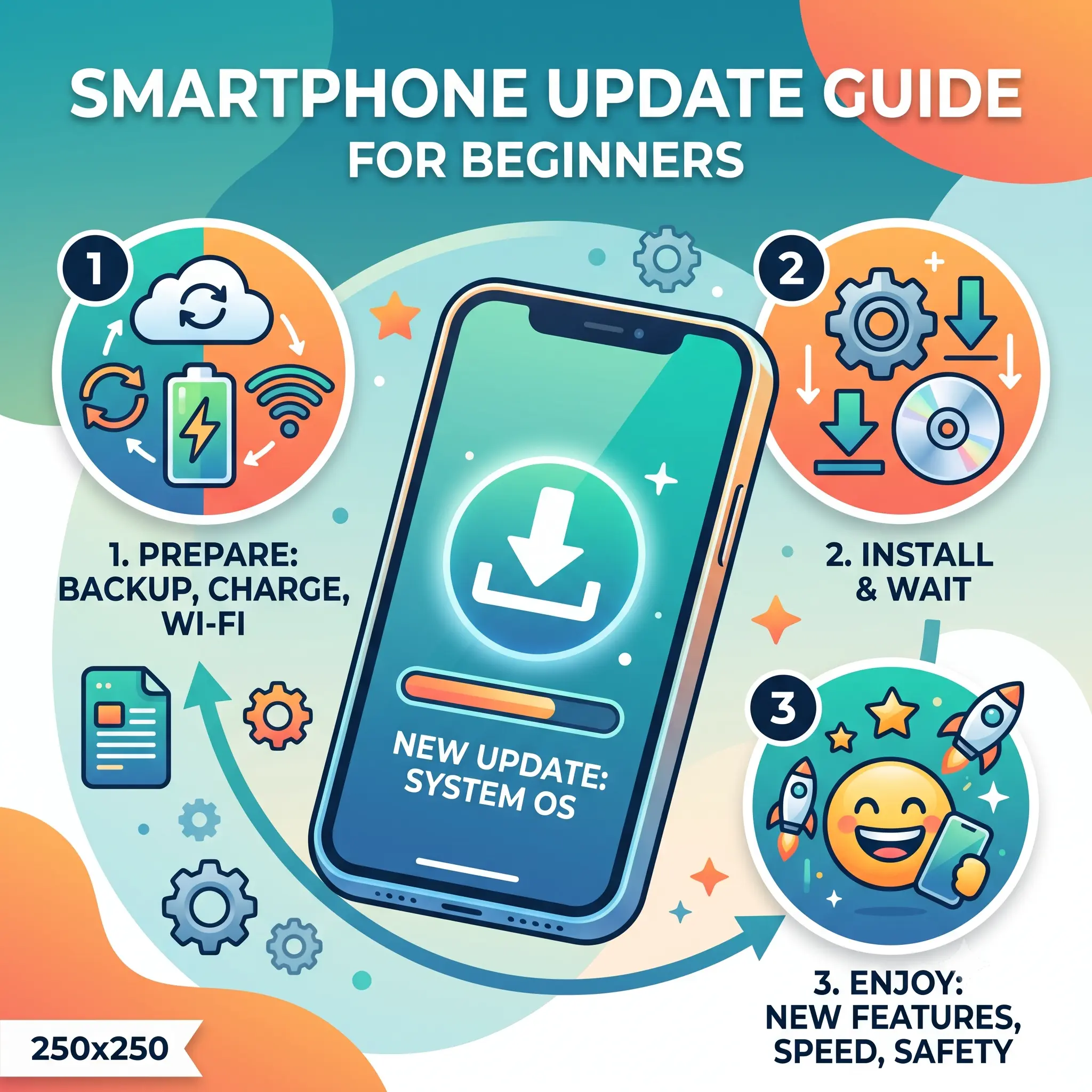
We’ve all stared at that little red notification badge on our phone’s settings app, wondering if tapping “Install Now” will make our device better or just completely ruin our day. If you’ve ever hesitated to tap that button, you aren’t alone. Keeping up with the latest smartphone software updates matters because it’s the easiest way to keep your personal data safe, fix annoying glitches, and breathe new life into a device that’s starting to feel slow.
However, updates can also be incredibly frustrating. Sometimes a new update drains your battery faster, changes the layout of your favorite apps so you can’t find anything, or simply takes way too long to install right when you need to use your phone. It’s completely normal to feel a bit of “update anxiety” when your screen goes black and the loading bar crawls across the screen.
But here is the good news: updating your phone doesn’t have to feel like playing roulette. By understanding exactly what these updates do and how to prepare your device for them, you can skip the stress and enjoy the benefits. Let’s break down exactly what these updates are and how you can handle them like a pro.
What Are the Latest Smartphone Software Updates?
Think of your smartphone’s operating system (like iOS for iPhones or Android for devices like Google Pixel and Samsung) as the brain of your device. A software update is essentially your phone going to school to learn new skills, forget bad habits, and put on a fresh coat of armor.
When companies like Apple or Google release an update, they are sending out a downloadable package of code that replaces the old instructions your phone was running on. For a beginner, it helps to imagine owning a house. The physical phone you hold in your hand is the foundation and the walls. The software is the plumbing, the electricity, and the interior design. An update might fix a leaky pipe (a bug), install a better security system (a security patch), or completely remodel the kitchen (a new feature).
For example, when Apple releases a major update like iOS 18 or Google pushes out Android 16, they might introduce a new way to customize your home screen or add real-time voice translation during phone calls. Alongside these big, flashy changes, there are also “minor” updates that happen throughout the year. These smaller updates usually don’t change how your phone looks; they just quietly fix background issues so your phone runs smoothly.
Why Do We Get Smartphone Software Updates?
It can sometimes feel like smartphone manufacturers push out updates just to annoy you, but every update actually serves a specific, critical purpose. Here are the primary reasons your phone asks you to update.
To Patch Critical Security Holes
The most important reason updates exist is to protect you. Hackers are constantly looking for tiny loopholes in smartphone software to steal passwords, read text messages, or access banking apps. When Apple or Google discovers one of these loopholes, they immediately build a “patch” to cover it up. Installing the update is what applies the patch to your phone. If you ignore security updates, you leave the front door to your digital life unlocked.
To Squash Annoying Bugs
No piece of software is perfect when it’s released. You’ve probably experienced bugs yourself: an app that randomly crashes, a camera that freezes when you try to take a video, or Wi-Fi that keeps dropping. Software updates are the manufacturer’s way of fixing these mistakes after the phone has already been sold. For instance, if thousands of users report that their phone’s Bluetooth keeps disconnecting from their car, the next minor software update will usually include code specifically written to solve that exact problem.
To Introduce Brand New Features
This is the fun part of updates. Major updates, which usually happen once a year, bring entirely new capabilities to your phone so you don’t have to buy a new device to get new tech. Recent updates have introduced features like built-in AI writing assistants, custom lock screens, and advanced spam-call blockers. These feature drops keep your phone feeling modern and fresh long after you take it out of the box.
To Improve Battery and Performance Efficiency
Over time, as developers understand how people are using a specific phone model, they find ways to make the software run more efficiently. An update might rewrite how your phone handles background tasks, which can actually extend your battery life or make opening apps feel a fraction of a second faster.
Best Ways to Manage and Install Updates
Taking control of your smartphone software updates means you get all the benefits without the typical headaches. Here are the most practical, actionable ways to handle your updates smoothly.
1. Back Up Your Data Before Pressing “Install”
Why it works: Even the most stable updates can occasionally fail. If your phone loses power or hits a corrupted file during the installation process, it might need to be factory reset. Having a backup ensures your photos, contacts, and messages are safe in the cloud.
Practical Example: Before installing a major update, go to your iPhone’s iCloud settings or your Android’s Google One settings and tap “Back Up Now.” Wait for the progress bar to finish before starting the update.
2. Plug Your Phone into a Charger
Why it works: Software updates require a massive amount of processing power, which drains the battery quickly. If your phone dies in the middle of installing an OS update, it can “brick” the device—meaning it won’t turn on at all.
Practical Example: Make it a hard rule: never start an update unless your phone is physically plugged into a wall outlet, even if your battery says it’s at 80%.
3. Connect to a Stable Wi-Fi Network
Why it works: Major updates can be anywhere from 1GB to 5GB in size. Downloading this over a cellular connection can eat up your monthly data plan and takes much longer. A slow or dropping connection can also result in a corrupted download file.
Practical Example: Wait until you are at home or the office on a secure Wi-Fi network. Avoid updating on public Wi-Fi at coffee shops, as these networks often have download limits that will pause your update halfway through.
4. Clear Out Storage Space Beforehand
Why it works: Your phone needs “breathing room” to unpack the update files. If you have 64GB of total storage and 63GB are full, the update will fail to download.
Practical Example: If you are tight on space, delete 3 or 4 large video files or offload apps you haven’t used in months. Aim to have at least 10% of your total phone storage completely free before attempting an update.
5. Schedule Updates for the Middle of the Night
Why it works: You can’t use your phone while it’s updating—no calls, no texts, no alarms. Doing this during the day can leave you stranded. Both iOS and Android allow you to schedule the update to happen while you sleep.
Practical Example: When the update prompt appears, look for the “Update Tonight” option. Just make sure your phone is plugged in and connected to Wi-Fi when you go to bed.
6. Wait a Few Days for Major Releases
Why it works: When a massive yearly update drops, millions of people download it on day one. Sometimes, these initial releases have hidden bugs that drain batteries or crash third-party apps. Waiting lets early adopters find the problems so you don’t have to.
Practical Example: If Android 16 or iOS 19 comes out on a Tuesday, wait until the weekend to install it. Keep an eye on tech news to see if people are complaining about major bugs before you hit download.
7. Update Your Apps Afterward
Why it works: The new operating system might change how apps are supposed to function. App developers release their own updates to match the new phone software. If you update your phone but not your apps, your apps might crash.
Practical Example: Immediately after your phone reboots from a system update, open the App Store or Google Play Store, go to your profile, and tap “Update All.”
Expert Tips
If you want to treat your phone like an IT professional would, keep these lesser-known strategies in mind. People often fail at maintaining their devices because they only react to problems rather than preventing them.
- Turn on “Auto-Update” for Security, but not for Major OS Upgrades: Dig into your settings and allow your phone to automatically install small security patches overnight. However, keep major version upgrades (like moving from iOS 17 to 18) set to manual. This gives you control over when massive changes happen to your interface.
- Memorize Your Passwords First: A common situation where people fail is getting locked out of their phone after an update. Sometimes, an update will force you to physically type in your Apple ID or Google account password, bypassing Face ID or fingerprint scanners. Make sure you actually know your password before updating.
- Check Third-Party App Compatibility: If you rely on a very specific, niche app for your job (like a proprietary scheduling tool or a medical device monitor), check the app developer’s website before doing a major phone update. Niche apps are notoriously slow at updating their code to match new phone software.
- Restart Your Phone if it Feels Hot After Updating: After a major update, your phone will spend a few hours re-indexing all your files and photos in the background. It’s normal for the phone to feel warm. But if it feels hot and sluggish 24 hours later, a simple manual restart usually clears the software cache and fixes the battery drain.
- Don’t Forget the Carrier Settings: Sometimes your cellular provider (like Verizon, AT&T, or Jio) sends updates that don’t trigger a main software alert. Go to your phone’s “About” page in the settings; simply opening this page will occasionally trigger a hidden “Carrier Settings Update” that improves your cell reception.
Common Mistakes to Avoid
- Ignoring updates for months:
- Why it’s harmful: You leave yourself vulnerable to known cyberattacks and guarantee that when you finally do update, it will take hours to catch up.
- The correct approach: Install updates within a week of them being released to your phone.
- Updating while traveling:
- Why it’s harmful: Hotel Wi-Fi is unreliable, and if your phone experiences a glitch during the update, you won’t have access to your boarding passes, maps, or translation apps.
- The correct approach: Only update your device when you are at home and have a backup way to communicate.
- Using Beta software on your primary phone:
- Why it’s harmful: “Beta” updates are unfinished test versions meant for developers. They are notoriously unstable and will crash your daily apps.
- The correct approach: Stick strictly to public, stable releases unless you have a spare phone meant only for testing.
- Deleting system files to make room:
- Why it’s harmful: People sometimes try to force space for an update by plugging their phone into a computer and deleting random folders. This easily breaks the phone.
- The correct approach: Only delete user-generated content like videos, unused apps, and downloaded podcasts through the phone’s native settings menu.
- Panicking during a black screen:
- Why it’s harmful: During an update, the phone will restart several times and may sit on a black logo screen for 10 minutes. Forcing a hard reset during this phase corrupts the software.
- The correct approach: Put the phone down, walk away, and give it at least 30 minutes to do its thing undisturbed.
Pros and Cons of the Latest Smartphone Software Updates
Pros
- Enhanced Security: Keeps hackers out by patching known vulnerabilities.
- New Capabilities: Adds features like AI tools or better camera processing for free.
- Smoother Performance: Fixes bugs that cause apps to crash or the screen to freeze.
- Better Compatibility: Ensures your phone can communicate with the newest smartwatches, headphones, and car systems.
- Higher Resale Value: Phones running the latest software generally retain higher trade-in values.
Cons
- Temporary Battery Drain: The phone works overtime right after the update, temporarily killing battery life for a day or two.
- Learning Curve: UI changes might move your favorite buttons or change how menus look.
- Storage Space Requirements: Updates take up gigabytes of internal storage just to download and install.
- Obsolescence on Old Hardware: Brand new software can sometimes make a 4-year-old phone feel sluggish because the old hardware struggles to run the new code.
FAQs
What happens if I never update my phone?
If you never update your phone, it will continue to work for a while, but it will eventually become a security risk. Over time, your favorite apps will stop supporting your older software version, meaning you won’t be able to open apps like WhatsApp or your mobile banking until you update.
Will updating my phone delete my photos or contacts?
No. Standard software updates are designed to keep all your personal data exactly where it is. However, technology isn’t perfect, and rare glitches can happen, which is why it is highly recommended to back up your phone to the cloud before starting an update.
Why does my phone say I don’t have enough space to update?
Updates are large files. Your phone needs enough space to download the packed file, unpack the new code, and apply it. If your storage is full of photos, videos, and large apps, the phone literally doesn’t have the physical room to process the update.
How long should a software update take?
A minor security patch might take 5 to 10 minutes. A major yearly operating system upgrade can take anywhere from 20 to 45 minutes, depending on your Wi-Fi speed and how old your phone’s processor is. Always allocate at least an hour where you won’t need the phone.
Can I go back to the old software if I don’t like the update?
Generally, no. Apple heavily restricts rolling back to older versions of iOS to maintain security. Android users technically can revert to older software, but it requires highly technical computer skills, wipes the phone entirely, and is not recommended for beginners.
Does updating my phone ruin the battery life?
Permanently? Usually no. Temporarily? Yes. For about 24 to 48 hours after a major update, your phone reorganizes data in the background, which consumes extra battery. If the battery is still draining rapidly after a week, there may be a bug that requires another patch.
Why did my friend get the update, but my phone says it’s up to date?
Updates are usually rolled out in “phases” based on your region, your mobile carrier, and the exact model of your phone. This prevents the manufacturer’s servers from crashing. Just check back in a few days, and it should appear.
Should I update over cellular data or Wi-Fi?
Always use Wi-Fi if possible. Updates are massive data files. Downloading over cellular can eat through your monthly data cap, result in extra charges on your phone bill, and is often much slower and more prone to connection drops.
What is a “Security Patch” versus a “Major Update”?
A security patch is a small download that fixes specific vulnerabilities or bugs without changing how your phone looks. A major update (like going from Android 15 to Android 16) is a massive download that overhauls the design, adds new features, and changes the core system.
Is it safe to update a phone that is 4 or 5 years old?
Yes, it is safe, but proceed with realistic expectations. Manufacturers optimize new software for new hardware. While the update will give your old phone better security, it might also make it run slightly slower because the older processor is working harder to run the modern code.
Conclusion
Tackling the latest smartphone software updates doesn’t have to be an intimidating chore that you put off for months. By understanding that these updates are simply digital maintenance—designed to keep your personal data safe, squash annoying bugs, and give you free new features—you can approach them with confidence.
The secret to a stress-free update is all in the preparation. Remember to back up your data, plug your phone into a wall charger, use a solid Wi-Fi connection, and give your device the time it needs to install the software without interruption. Your smartphone is an expensive, essential tool for your daily life, and keeping its software fresh is the absolute best way to protect that investment. Don’t let that little red notification badge sit there; check your settings tonight and give your phone the tune-up it deserves!